
We are going to create a trigger to automatically CC a customer on all tickets created for an organisation. The CC address is held in a custom organisation field. You can use one trigger to notify multiple organisations.
The steps to follow are:
- Create a custom organisation field to hold the CC email address
- Create dynamic content to extract any CC user already on the ticket
- Find your API password
- Create an extension to action our CC user
- Create a trigger to pull it all together
This article comes from the original post from Andrey. Within Andrey's article, you will find other options for managing CCs in Zendesk.
Create a custom organisation field
Under Admin>Manage>Organisation Fields, create a new text field.

The naming of the field is important. Here it is called:
- CC User on All Organisation Requests
Zendesk will default the key field value:
- cc_user_on_all_organisation_requests
This will be used to identify the field later.
Create dynamic
Under Admin>Manage>Dynamic Content, we shall create some code to extract any users already CC'ed on a ticket.
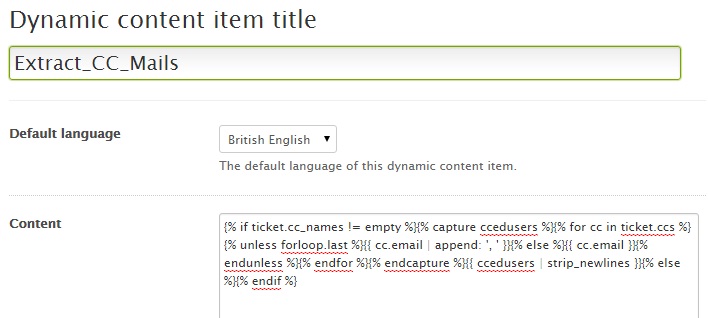
Again, naming is important. The dynamic content is named:
- Extract_CC_Mails
The content should hold:
{% if ticket.cc_names != empty %}{% capture ccedusers %}{% for cc in ticket.ccs %}{% unless forloop.last %}{{ cc.email | append: ', ' }}{% else %}{{ cc.email }}{% endunless %}{% endfor %}{% endcapture %}{{ ccedusers | strip_newlines }}{% else %}{% endif %}
Find your API password
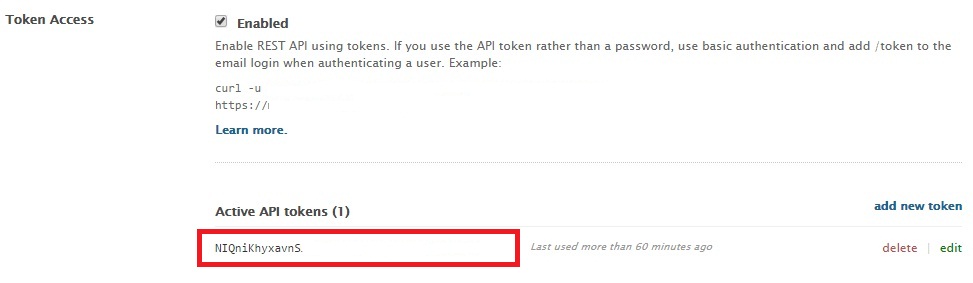
Under Admin>Channels>API, enable Token Access.
Add a new token and take note of the long token reference generated. You will use this to authenticate access in your extension.
Create an extension
Extensions are available as trigger actions. This extension will add our organisation's designated user as a CC.
Go to Admin>Settings>Extensions.
Add a new target and select 'URL target' as the type.

There are few settings required here:
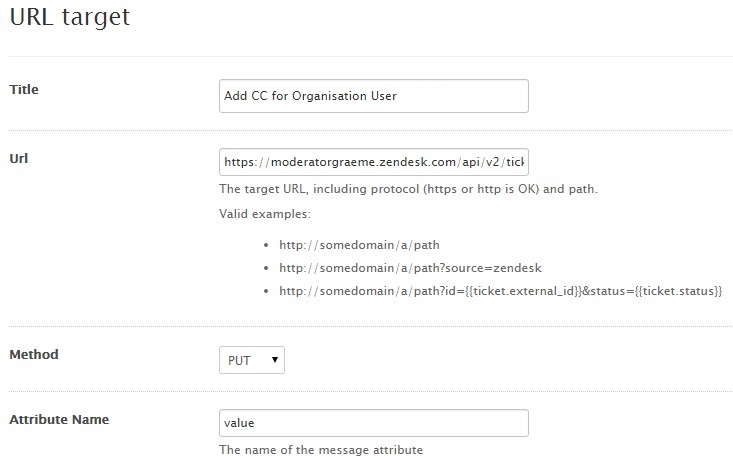
Title: This is the name of the extension that will appear in our trigger actions.
Method: PUT
URL: These are the instructions to be processed in our trigger action. Paste the following code:
https://YOURDOMAIN.zendesk.com/api/v2/tickets/{{ticket.id}}.json+?ticket[collaborators]={{dc.extract_cc_mails_+|+prepend:','+|+prepend:{{ticket.organization.custom_fields.cc_user_on_all_organisation_requests}}
Replace the text YOURDOMAIN with the domain of you own help desk.
You will also recognise that our dynamic content name, Extract_CC_Mails, and the key field of our organisation field, cc_user_on_all_organisation_requests
Attribute Name: value
The remaining fields are to authenticate the instructions sent to your Zendesk.
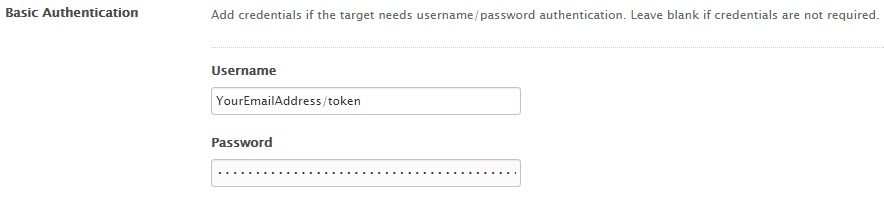
For the username, enter your email address, immediately followed by '/token'.
In the password field, paste the long token reference that you created in the API section.
Create your target or update your target to save any changes.
Create trigger
A trigger will call your extension. Because an organisation field holds the email address of your contact, you only need one trigger to cover all organisations. For example, your conditions may be:
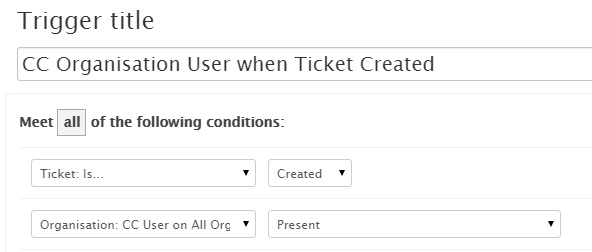
And, the action is to call our extension.
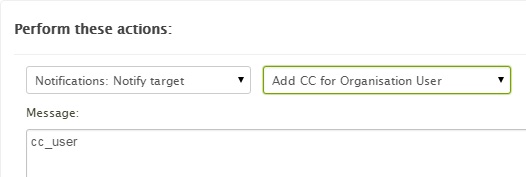
Ensure you include the text in the message box.
You may want to position the trigger near the top of your list to ensure it fires early.
Using the CC field
For each organisation, enter the CC addresses in the custom field. Separate multiple addresses with commas.

When viewing a ticket, click 'Show all events' to see the trigger firing.

Comments
0 comments
Please sign in to leave a comment.