
Administrators should follow a few steps to hide agent identities from customers.
- Disable personal email replies
- Remove photo from email template
- Remove personal agent signatures
- Use Agent Alias (Enterprise only)
- Update request page template photo
- Remove assignee names
Disable personal email replies
Under Admin>Channels>Email>Personalised Email Replies, deactivate the option.

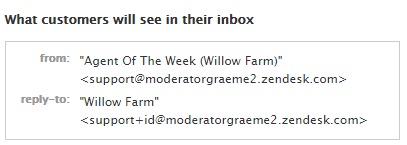
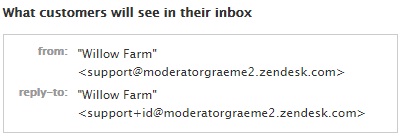
The effect is to change the header in support addresses.
With personalised email replies checked:
And with the option disabled:
Remove photo from email template
Under Admin>Channels>Email>Email templates, deactivate the 'Show user photo in email' option.

Remove personal agent signatures
Signatures are added to all Agent public ticket comments.
Under Admin>Settings>Agents>Signature, remove the {{agent.signature}} placeholder.
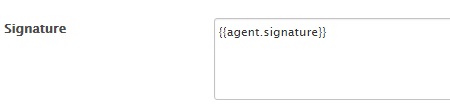
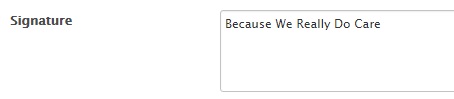
You can either leave the signature box blank, or insert a new global signature.
Use Agent Alias (Enterprise only)
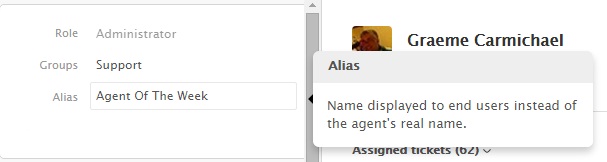
Each agent can enter an alias in their profile.
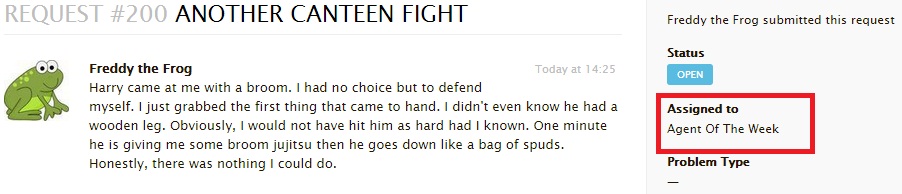
The alias displays in the Help Centre:
Update request page template photo
Agent photos will continue to display to customers in the Help Centre. Remove photos by editing the Request Page HTML.
Look for the {{author.avatar_url}} placeholder.
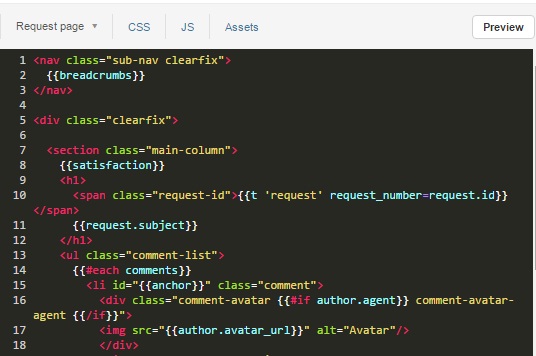
Change the HTML output where the author is an agent.

The customer's photo will continue to display, but the agent photo will not.
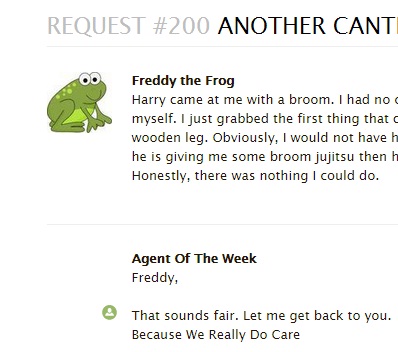
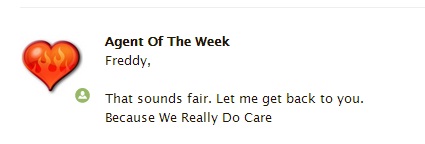
Instead of removing the agent photo, your company logo can replace the image.

To give:
Remove assignee names
Non Enterprise customers can edit the 'Request Page' to completely remove the assignee name.
Enterprise customers may consider this step to hide the identity of Agents with no alias.
On the Request Page, search for the {{assignee.name}} placeholder.
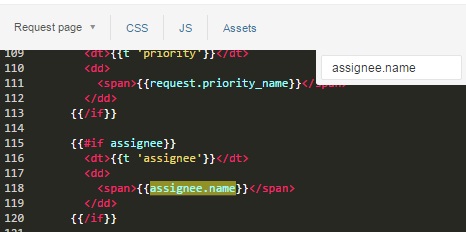
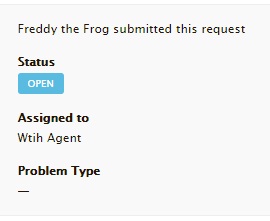
Either remove the placeholder or replace it with text as below:

Which shows in the Help Centre as:
Comments
0 comments
Please sign in to leave a comment.