
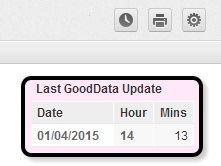
Zendesk sends details to Insights hourly for Enterprise Plans and daily for Plus Plans. You can see the update time by opening GoodData and checking the most recent dataset upload times. However, it is a little quicker and more insightful to include the latest ticket update time in a dashboard.
Ticket Updated at (minutes)
The date and time a ticket is last updated is stored in the fact 'Ticket Updated at (minutes)' as a serial number that accumulates minutes since 1 January 1970. Use this to extract the part of the hour a ticket was last updated and find the last ticket updated before the data was sent to GoodData.
Create Custom Metrics
First, create two custom metrics:
Ensure you use the attribute selector to create the custom metrics. Look under Facts for 'ticket updated at(minutes)'
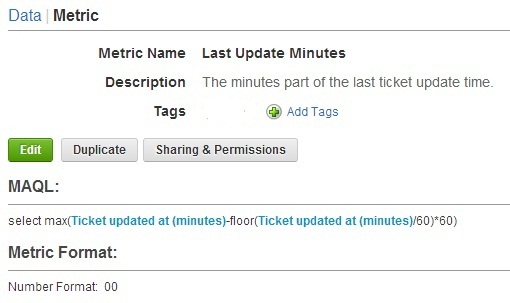
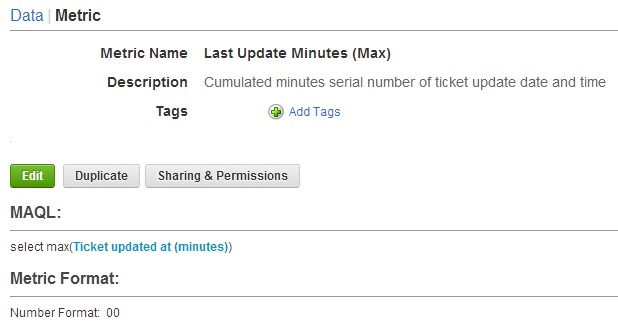
Creating the report
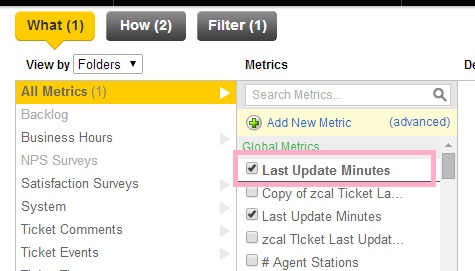
Create a new GoodData report. Under What include the 'Last Update Minutes' custom metric.
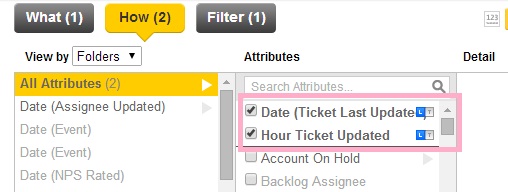
Under How include the date and hour the of the last ticket update.
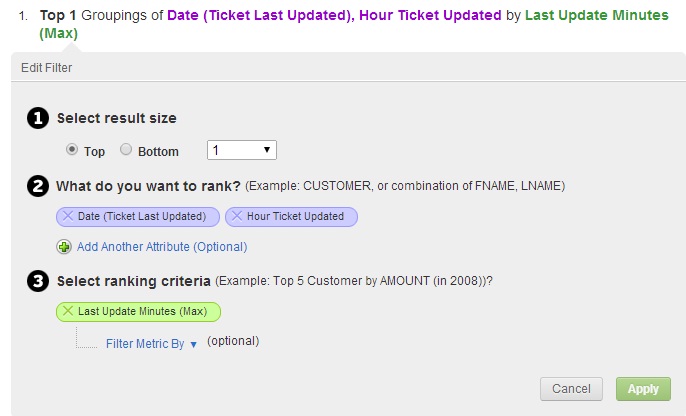
Add a ranking filter to find the latest ticket updated by date and hour.
Final report
The final report should display as a table. Rename and resize the columns to minimise space.
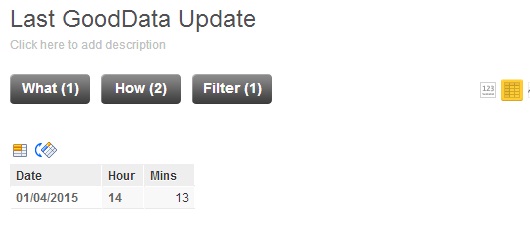
The result
The last ticket update time shown on the report will lag behind the latest dataset update time. This will reflect:
- Low activity in the help-desk when tickets are not being updated (for example overnight)
- The delay between the export of ticket details to GoodData and the processing of the export in GoodData.
Comments
0 comments
Please sign in to leave a comment.